How to Improve PDF Readability on Mobile Devices
Reading PDFs on mobile devices can be frustrating. Users often need to zoom in and out repeatedly to follow text, especially in documents with multiple columns or complex layouts.
With FlowPaper, you can improve mobile readability using the Zoom Snap feature. It allows readers to tap on specific sections of the page and automatically zoom into a readable view.
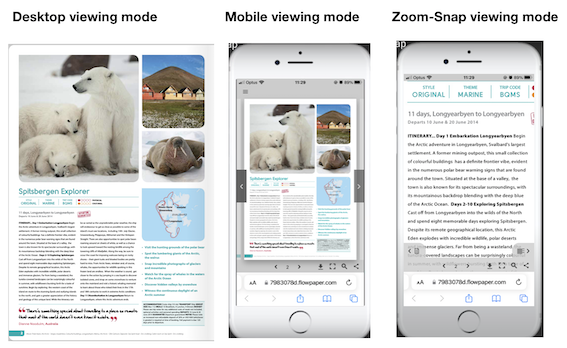
Why use Snap Zoom reader mode?
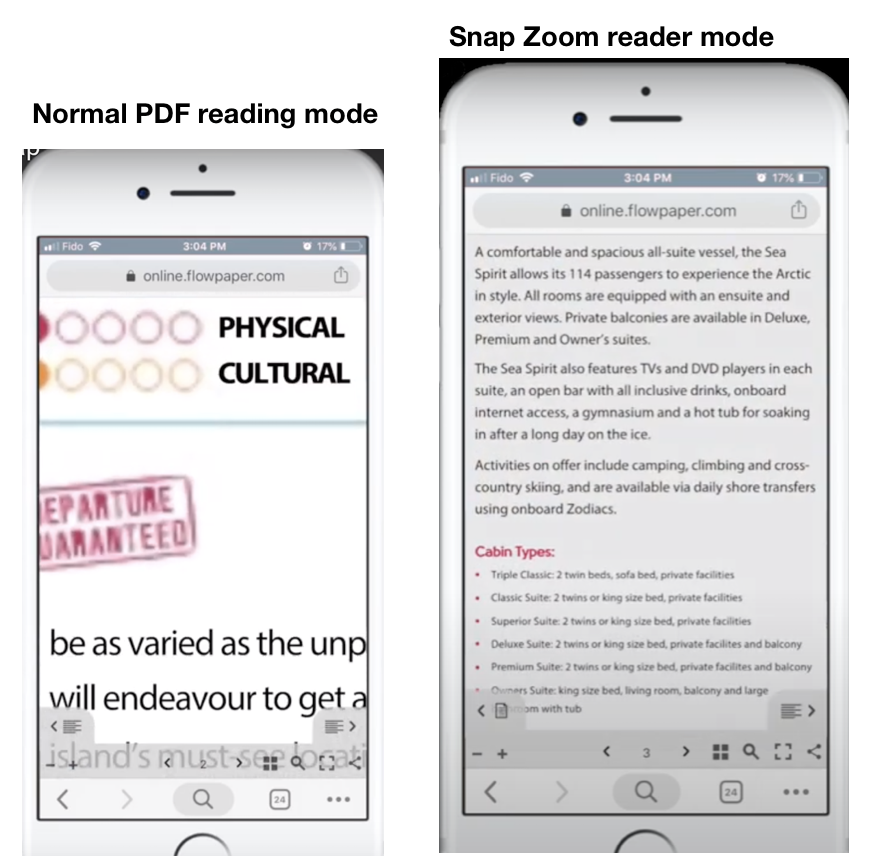
With Zoom Snap enabled:
-
Users can tap on paragraphs or columns to zoom in
-
Navigation becomes easier on smaller screens
This is especially useful for documents with multi-column layouts or dense text content.
How to enable Zoom Snap in FlowPaper
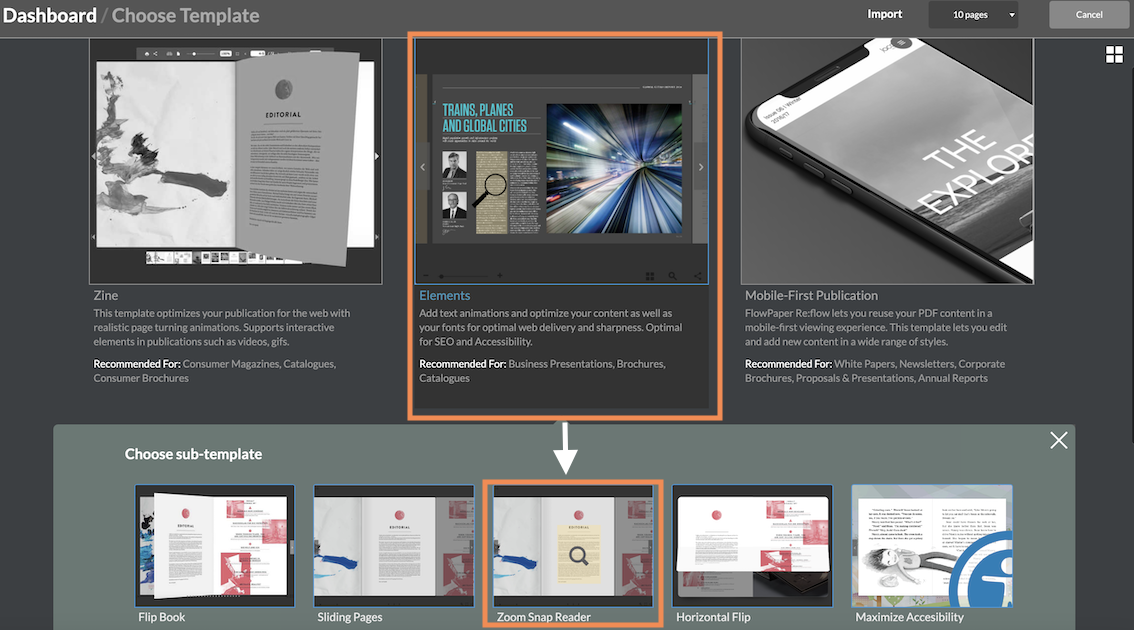
1) Import your PDF using the Elements template
2) Select the Zoom Snap sub-template
3) Complete the import and publish your publication
FlowPaper automatically detects reading areas and layout structure, so in most cases, no manual configuration is needed.
Test your publication on mobile
1) Click Publish and upload your publication
2) Open the published link on a mobile device
3) Tap on any text section to test how Zoom Snap adjusts the view
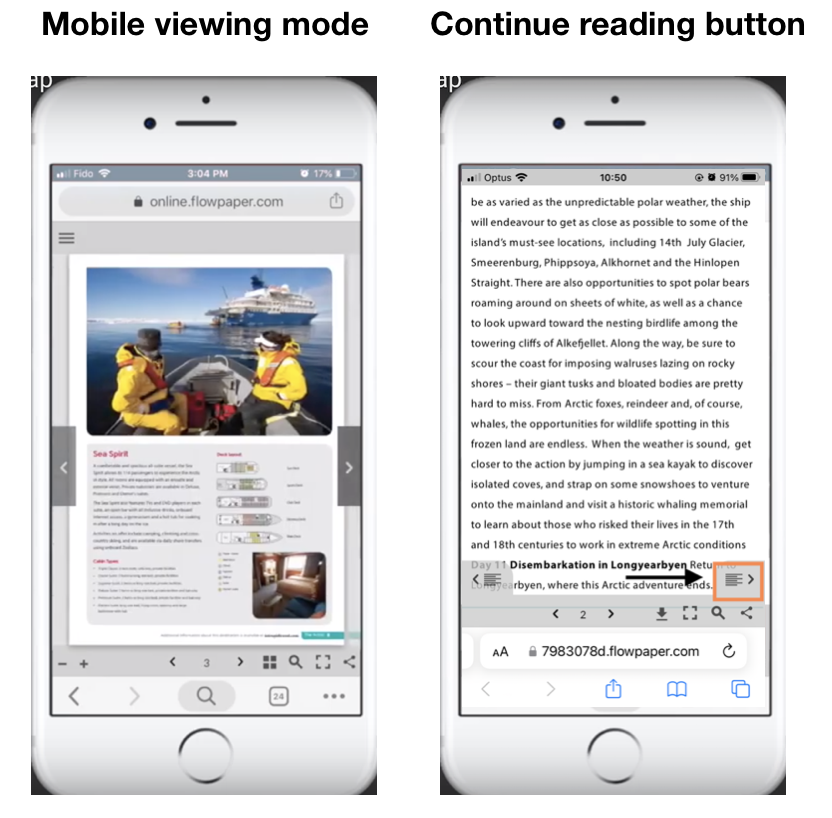
4) A navigation icon appears in the bottom-right corner
When you tap it, the viewer automatically moves to the next section of text, making it easier to continue reading without manually scrolling.
Related tutorials
Replace a Page in a PDF Without Losing Changes
How to Add More Content to a PDF Without Changing the Layout