Create a Table of Contents from a PDF
Long PDF documents can be difficult to navigate, especially online. Without a clear structure, readers must scroll through pages manually, which reduces usability and engagement.
FlowPaper makes it easy to create a clickable Table of Contents (TOC) for your publication. You can automatically generate it from existing PDF bookmarks or build it manually from scratch.
Import your PDF and open the TOC editor
Start by importing your document using the Desktop Publisher.
-
Import your PDF
-
Select Zine or Elements template
Once imported, open the TOC editor (Table of Contents) from the left-hand panel. If your PDF contains bookmarks, they will automatically appear as TOC entries.
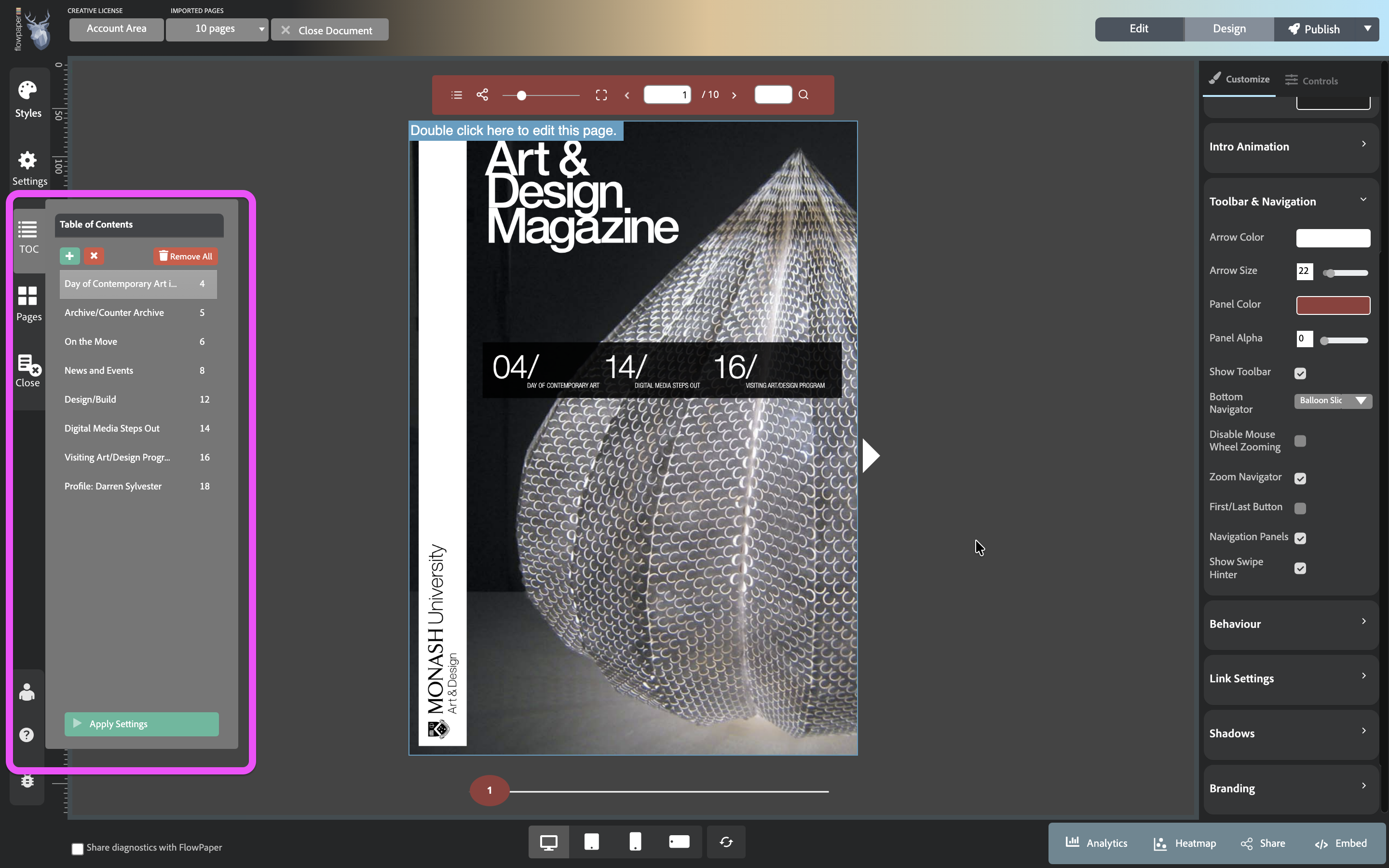
Edit or create your Table of Contents
Inside the TOC editor, you can fully control the structure of your navigation.
-
To remove an entry, select it and click the X
-
To add a new entry, click the + button, then enter a title and the page number it should link to
-
To clear everything, use Remove all
You can use this editor both to refine imported bookmarks and to create a Table of Contents from scratch if your PDF doesn’t include any.
When adding entries manually, keep in mind that FlowPaper counts the cover as page 1, so page numbers may differ from printed numbering.
Apply and verify your changes
After editing your Table of Contents:
- Click Apply Settings to save your changes


Once published, readers can open the Table of Contents from the viewer interface. In the Zine template, it is available as an icon in the toolbar. In the Elements template, the Table of Contents icon appears in the top-left corner. This allows users to jump between sections instantly.
Related tutorials
To learn more about customizing your publications in FlowPaper: