Add Pages to a PDF Without Recreating the Entire Document
Adding new pages is a common need when your content grows or changes over time. Whether you want to insert sections, append information, or combine files, updating a PDF can quickly become inefficient.
With FlowPaper, you can import your PDF into a flipbook and add new pages exactly where you need them. This makes it easy to expand your document without rebuilding your publication or interrupting your workflow.
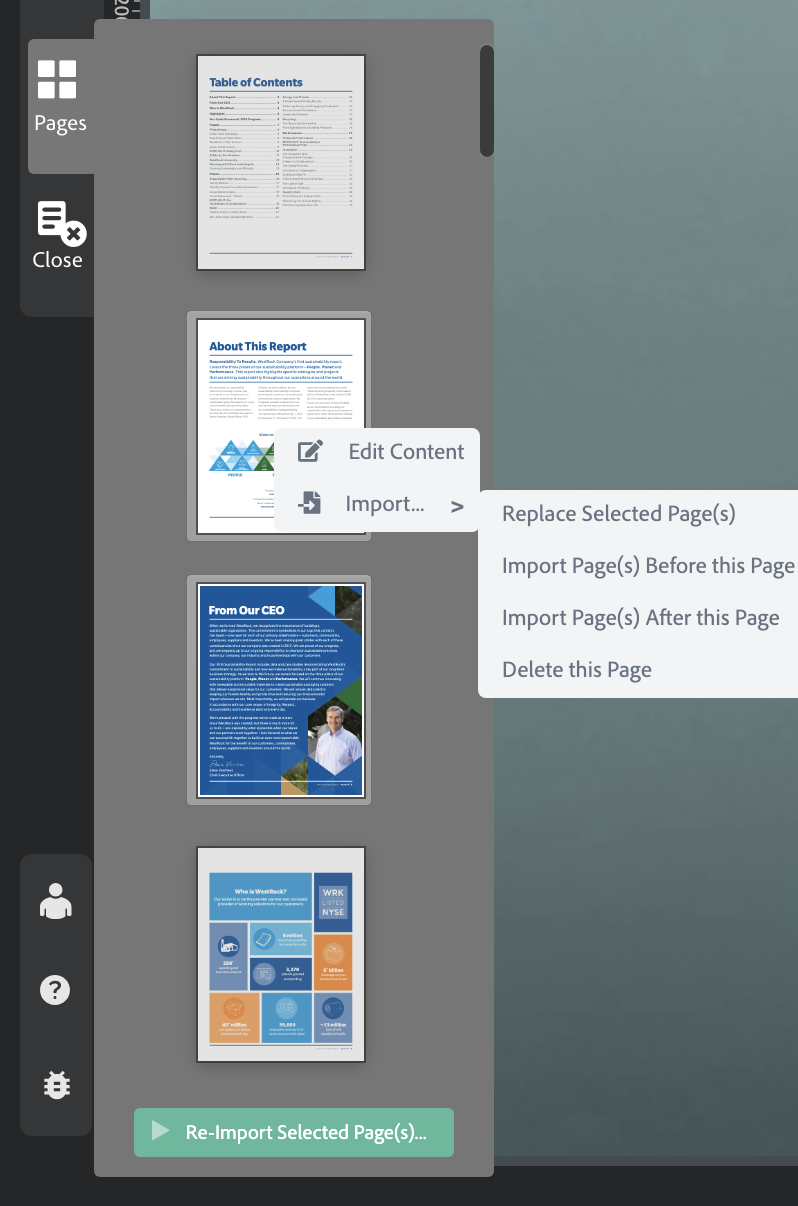
How to add or delete pages in a publication based on a PDF
1) Open your publication in the Desktop Publisher
2) Go to Pages
3) Right-click on the page where you want to make change
4) Select one of the following options:
-
Import pages before this page
-
Import pages after this page
-
Delete this page
5) Choose the file you want to import (if adding pages):
-
A PDF file
-
An image
FlowPaper will insert or remove pages while keeping the rest of your publication unchanged. You can also combine content from multiple PDFs into a single interactive publication.
Related tutorials
Replace a Page in a PDF Without Losing Changes
How to Add More Content to a PDF Without Changing the Layout