Choosing a flipbook maker is about more than page turns. When readers zoom in on a PDF, small details matter: a product specification, a caption, the fine print beneath a chart. In FlowPaper 4.1.7, we’ve continued refining how pages are rendered so those details stay easy to read.
Zooming in should make a publication easier to read, not blur its text.
Sharp text, even when enlarged
In a FlowPaper PDF flipbook, text and vector artwork remain scalable content. Enlarge the page and the lettering stays crisp, rather than turning soft or pixelated. That makes a real difference in publications people need to inspect closely, from catalogs and manuals to reports and magazines.
When comparing online flipbook makers, check the page at more than fit-to-screen size. A viewer built around fixed-resolution page images can lose detail when you zoom in. FlowPaper’s vector-based approach preserves the PDF’s text and vector elements at different magnifications. We explain more in What Is a Flipbook—and Why Flipbook Makers Aren’t All the Same.
The page as it was designed
Sharp text is only part of the picture. It needs to sit naturally alongside the page’s images, backgrounds and other details. The latest rendering refinements in 4.1.7 help preserve that composition, whether readers are viewing the whole page or looking more closely.
With FlowPaper 4.1.7, publishers can bring catalogs, manuals, reports and magazines online as digital flipbooks that readers can zoom into and keep reading.
Many FlowPaper users have requested a PDF export for heatmap analytics. You can now request a report that brings recorded engagement together with the pages readers explored.
Heatmap overlays show reader activity across publication pages and in a PDF report.
See where readers engage
Heatmaps visualize recorded panning and zooming activity directly over publication pages. The PDF report uses the same color scale and rendering as the web heatmap, so the results stay consistent wherever you review them.
We have also updated the heatmap color scheme and presentation to make engagement patterns easier to read at a glance.
Take your report beyond the dashboard
Request a heatmap PDF report from the analytics page and FlowPaper will email it to your account. The report includes pages with recorded activity, with engagement intensity scaled relative to each page. Rendered page images help keep the report compact and easy to share.
Before requesting a report
PDF heatmap reports currently support fixed-layout Zine publications. The source PDF must also be available in your synchronized workspace. If it is missing, synchronize your workspace first and then request the report again.
With FlowPaper version 4.1.5, WCAG 2.1 compatibility is now available across all FlowPaper viewer templates.
Illustration of accessible publication features and a score of 100.
Accessibility across every template
Publishers can choose the FlowPaper template that best suits their publication while benefiting from accessibility support in the reader. This update extends WCAG 2.1 compatibility across the full range of templates, giving readers a more consistent experience.
Cross-tested with accessibility tools
FlowPaper 4.1.5 has been cross-tested with multiple third-party accessibility testing tools, including Google PageSpeed Insights and A11yPulse.
A note about publication content
Template compatibility is one part of an accessible reading experience. The accessibility of a finished publication can also depend on its source document, content, and configuration. FlowPaper 4.1.5 brings WCAG 2.1 compatibility to every viewer template, but that does not automatically mean every source document or publication conforms to WCAG.
We have no control over the contrast or type of font you use in your documents so to make sure you’re always compliant, run your PDF document through accessibility testing tools before publishing.
We’ve refined the FlowPaper ZINE reader to make publications easier to navigate and share, with a cleaner, more cohesive experience across desktop, tablet and mobile.
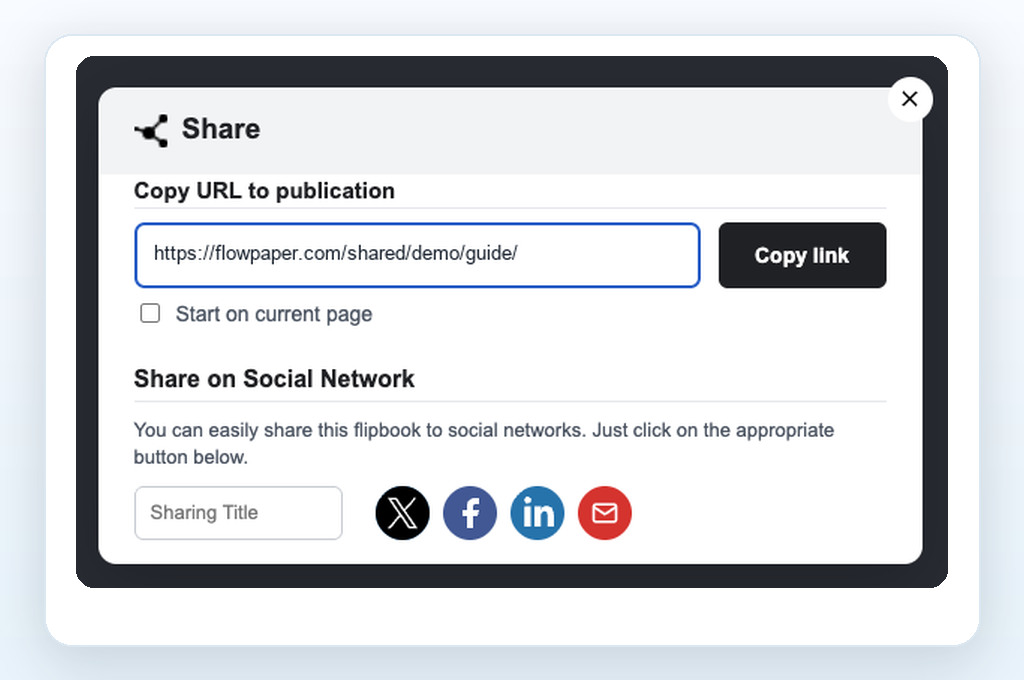
A streamlined share panel with a clean, copy-ready publication link.
A simpler way to share
The refreshed share dialogue puts the important options front and center. Readers can copy a publication link, include the current page, or share by email and social media. We’ve removed the embed-code section to keep the dialogue focused, with a modern rounded design that fits naturally into the reader.
Reader controls that adapt to every screen
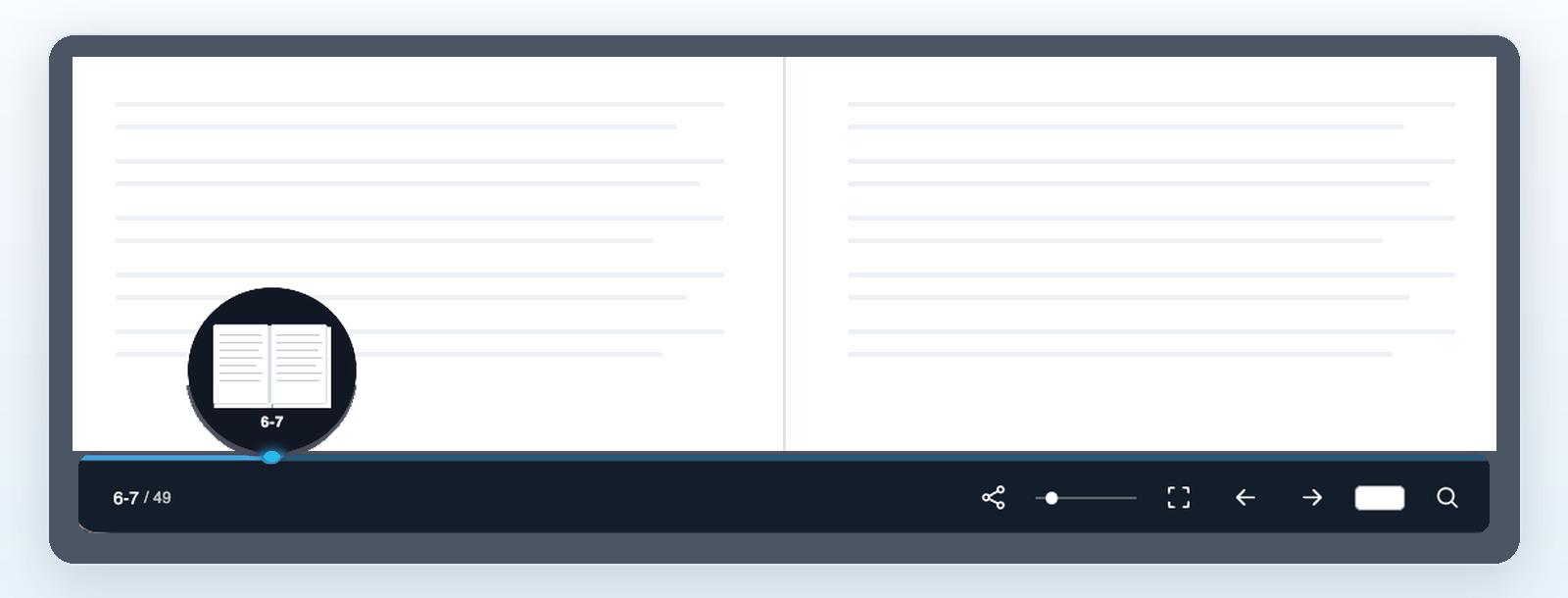
The bottom toolbar has been tuned for touch as well as desktop. It stays visible on tablets and phones, while desktop readers can keep the publication in focus with controls that recede when idle and return on interaction. Toolbar sizing and page-count alignment have also been refined for smaller screens, and the toolbar stays out of view during the intro animation.
Progress, navigation and common reader actions stay close at hand.
A consistent look throughout the reader
The search panel now follows the publication’s panel color and aligns cleanly with a bottom-positioned toolbar. The balloon slider’s accent is derived from that same panel color, while its dimmer track keeps reading progress easy to see without introducing a separate color setting.
Together, these updates make FlowPaper ZINE feel more polished and intuitive, helping readers focus on the publication while keeping its navigation and sharing tools close at hand.
What if creating an interactive flipbook was as simple as describing what you wanted?
In the second tutorial in our series on using ChatGPT with FlowPaper, we go well beyond importing a PDF. We start with a standard tourist brochure and use ChatGPT to turn it into a branded, interactive publication — changing the appearance, adjusting the toolbar, editing images, adding links and publishing the final result online.
Most of the process is handled through ordinary conversational instructions.
What You’ll Need
There are a few things to set up before you begin.
Start by downloading the ChatGPT desktop app from ChatGPT.com. The desktop version is useful for this workflow because it can work with applications running locally on your computer.
You’ll also need the FlowPaper desktop publisher, available from FlowPaper.com.
Mac users should choose the version that matches their processor — Apple Silicon or Intel. A Windows version is available as well.
Once FlowPaper is installed, launch it and install the ChatGPT integration from the application menu.
Keep FlowPaper open while you’re working and make sure you’re logged in. It’s also a good idea to avoid manually changing the publication at the same time ChatGPT is editing it.
Import a PDF and Preview It in ChatGPT
We begin with a tourist brochure in PDF format.
Normally, you might import the file into FlowPaper yourself and then work through the publication settings manually. With the integration installed, you can simply ask ChatGPT:
Use FlowPaper to import this PDF and show me a preview.
FlowPaper processes the document and returns the interactive publication inside ChatGPT.
From there, you can flip through the pages, inspect the result and decide what you’d like to change next. There’s much less back-and-forth between applications, which makes the editing process feel surprisingly direct.
Apply Your Website Branding
A generic flipbook is useful, but in most cases you’ll want the finished publication to look like it belongs to your website or business.
Rather than hunting down logo files and copying color values one by one, you can point ChatGPT at an existing website and use that as the reference.
For this example, we ask:
Grab the branding colors and logo from NewZealandTrails.com and use them in FlowPaper.
ChatGPT collects the relevant branding information and passes the changes to FlowPaper.
The flipbook is then updated with matching colors and a logo so that it feels much more consistent with the existing website.
The PDF itself hasn’t been redesigned. What changes is the presentation around it, which is often all you need to make an existing document feel properly branded.
Customize the Flipbook Toolbar
The appearance of the publication is only part of the experience. You can also decide which controls readers should have access to.
In the tutorial, we use a simple instruction:
Disable the sharing button and add a download button to the toolbar.
The toolbar is updated without affecting the branding we’ve already applied.
You can use the same approach for other FlowPaper controls. Instead of opening settings panels and working through individual options, you can describe the result you’re after and let ChatGPT handle the configuration.
Edit Images Inside the PDF
This is where the workflow starts to move beyond basic publication settings.
ChatGPT can also help modify the content of the document itself.
On the first page of our brochure, we ask:
Enhance page one by adding a flare to the sky and brightening the image.
The image is edited and passed back into FlowPaper, where the updated version becomes part of the publication.
That means you’re not limited to taking a finished PDF and placing it inside a flipbook viewer. You can make visual changes to the source material as you go, without breaking the overall workflow.
Add Interactive Links
FlowPaper supports interactive elements such as links, hotspots, images and YouTube videos, and these can also be added conversationally.
On page five of the brochure, there’s a photograph of a pair of hiking boots. We want the whole photograph to act as a link, so we tell ChatGPT:
Add a link area to the photo of the feet on page five pointing to https://newzealandtrails.com. Don’t make it a hotspot. Make it a regular link area and have it cover the whole image.
ChatGPT identifies the relevant area on the page and adds the link through FlowPaper.
Being clear about what you want makes a difference here. In this case, we’re deliberately asking for a standard link area rather than a hotspot, and we want it to cover the full image.
If you’re not sure what else is possible, you can ask ChatGPT which interactive elements FlowPaper supports or open the desktop publisher and explore the available options there.
Remove Objects From Existing Pages
We also try a more substantial image edit by removing a person from a photograph on page three.
The instruction is short:
Remove the human on page three.
ChatGPT edits the image and sends the updated page back to FlowPaper.
For the example in the video, there’s no need to open a separate image editor, export the page, make the change and then rebuild the document afterward.
That’s one of the more interesting parts of this workflow. You’re not restricted to a small menu of predefined AI actions. You can describe the change you want in plain language and continue working from there.
Use Your Existing ChatGPT Account
The FlowPaper integration works with your existing ChatGPT account.
You don’t need to buy a separate package of FlowPaper AI credits just to use these features. Instead, the integration uses the capabilities available through your ChatGPT account while FlowPaper handles the publication itself.
The tutorial also touches on a few other possibilities that aren’t demonstrated in detail, including working with multiple publications, modifying text and redacting information from PDFs.
Those examples show how the workflow can extend beyond the branding and image edits covered in this video.
The basic idea remains the same: describe the outcome you want, and let ChatGPT coordinate the changes with FlowPaper.
Publish Your Finished Flipbook
Once the publication looks the way you want, you can publish it without leaving the conversation.
In our example, we ask:
Publish this to FlowPaper Cloud and give me the URL I can use for sharing.
FlowPaper publishes the finished flipbook, and ChatGPT returns the link.
You can then open the publication yourself, copy the URL or send it directly to your audience.
So the workflow runs all the way from the original PDF to the finished online publication without requiring you to manually work through every step.
A More Conversational Way to Work With Flipbooks
This tutorial covers the first version of FlowPaper’s ChatGPT integration, and it already opens up some interesting ways of working.
Rather than adding AI as a collection of isolated buttons or commands, the integration lets ChatGPT work across several parts of the publishing process.
In a single session, we took an ordinary PDF, imported it, previewed it, matched it to an existing brand, changed the reader controls, edited images, added interactive content and published the result online.
There’s plenty more to explore from here.
We’ll be covering additional ChatGPT and FlowPaper workflows in upcoming tutorials.
Ready to try it yourself?Download FlowPaper and start building your own interactive flipbooks with ChatGPT.
Emailing a PDF is straightforward. You attach the file, send the message, and hope the recipient reads it.
The problem is that you usually have no idea what happens next. Did they open the attachment? Did they read the whole document or stop after the first page? Did they click any of the links inside it?
Publishing the PDF online can give you much more useful information.
Share PDFs with trackable FlowPaper links
FlowPaper lets you publish a PDF as an online document and send people a web link instead of a traditional attachment. The document opens directly in the browser, so the recipient does not need to download it before reading.
You can share one general link with everyone, or create a separate trackable link for each customer, prospect, or account.
The second option is particularly useful when you need to follow up with individual recipients.
Why create a separate link for each customer?
A public link can show you how the document is performing overall. However, it cannot always tell you which customer opened it or how a particular person interacted with it.
A trackable link gives each recipient their own URL. You can then view the activity associated with that link.
With FlowPaper, you can:
Create a unique link for an individual customer or contact
Check whether the link has been opened
Monitor reading activity and downloads
Add an expiry date to documents that should only be available temporarily
Receive an email reminder when a recipient has not opened the link
This can be helpful when sharing sales proposals, product brochures, catalogs, reports, presentations, or price lists. Instead of following up at random, you have a better indication of whether the recipient has looked at the material.
Viewing PDF activity in FlowPaper
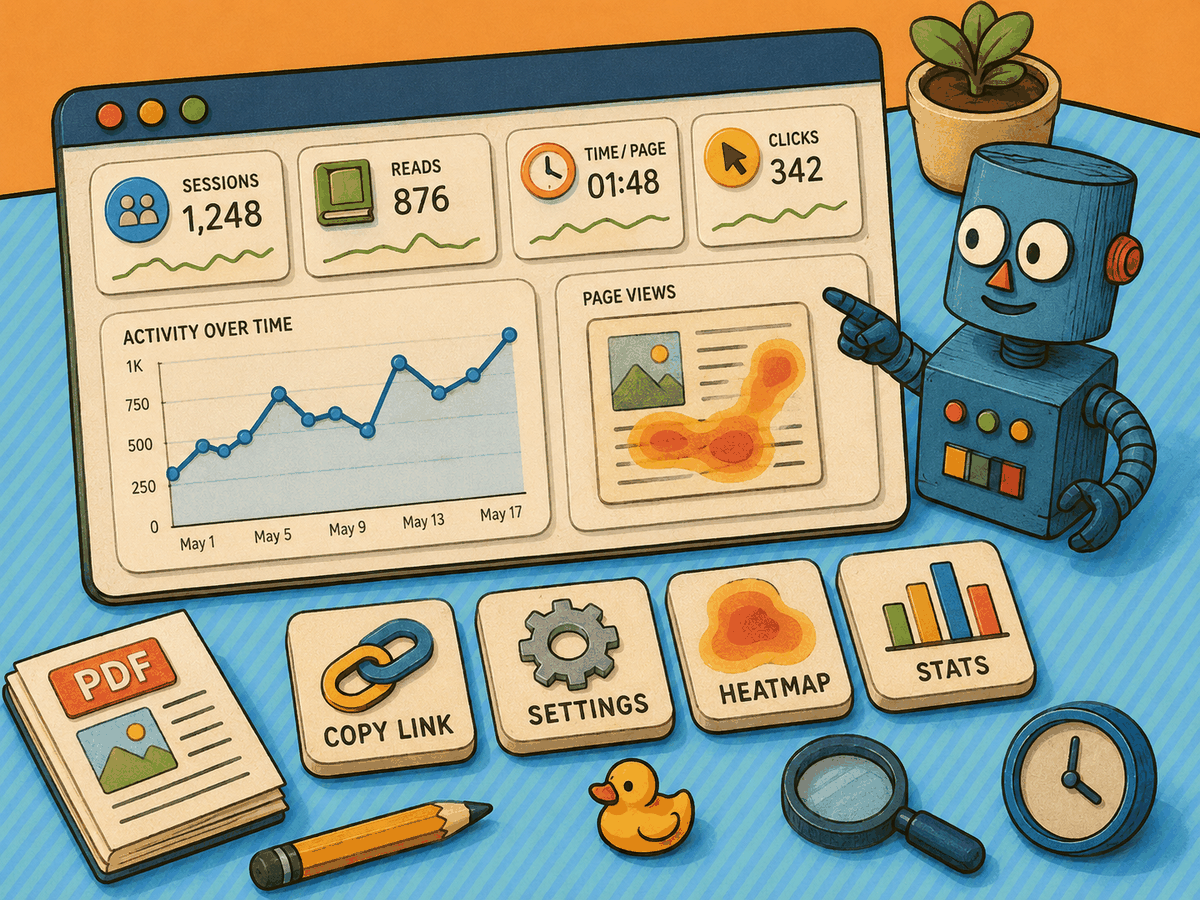
You can manage your trackable links from the Cloud Publications section of your FlowPaper account.
Each link includes several options:
Copy Link
Settings
Heatmap
Stats
You can look at the statistics for an individual link or review the publication as a whole.
Publication-level analytics include information such as Sessions, Reads, Time/Page, Clicks, and activity over time. This gives you a broad view of the document’s performance while still allowing you to examine the activity associated with a particular recipient.
Follow up when the timing makes sense
A trackable PDF link does more than tell you whether someone received your document. It can also help you decide when a follow-up message is most likely to be useful.
For example, you may see that a customer has opened the document more than once, spent time reading several pages, or downloaded a copy. That does not necessarily tell you what they are thinking, but it gives you more context than an ordinary email attachment.
By publishing a PDF online and sharing it through a trackable link, you turn a static file into a measurable part of your sales or communication process.
Read more
Want the full step-by-step walkthrough, including how to create the links and where to view the analytics?
Flipsnack claims to be the fastest flipbook maker on the market. We decided to put that to the test — comparing FlowPaper, Flipping Book, and Flipsnack side by side, using the same document and the same conditions.
We focused on three things that actually matter when working with interactive PDFs:
Upload speed — how long it takes to process your file
Load time — how fast the document opens when someone clicks your link
Zoom quality — what happens to the content when readers zoom in
Test 1: Upload Speed
We uploaded the same PDF to all three platforms on the same connection, with a timer running so the results are easy to compare.
FlowPaper processed the file noticeably faster, while the other platforms took longer to handle the same document. If you’re uploading documents regularly — especially larger ones — even small differences in upload time add up.
Test 2: Document Load Time
Upload speed is one thing, but what your audience actually experiences is the time between clicking a link and seeing your content.
We measured this using Pingdom, an independent load-time tool, running each test twice from the same location to eliminate connection variables.
The results:
FlowPaper loaded the fastest
Flipping Book fell in the middle
Flipsnack took the longest to fully render the document
Even modest differences in load time affect engagement — particularly on mobile, where readers are less patient with slow-loading content.
Test 3: Zoom Quality
This one is harder to put a number on, but easy to see with your own eyes.
With FlowPaper, you can zoom in deeply and text stays sharp. That’s because FlowPaper renders content as HTML5 — not as a static image. The result is crisp text and clear visuals at any zoom level.
With Flipping Book and Flipsnack, zoom capability is more limited. With Flipsnack in particular, the drop in quality becomes very noticeable at higher magnification. If your document contains small text or fine detail, blurry rendering will undermine the reading experience.
The Verdict
Across all three tests — upload speed, load time, and zoom quality — FlowPaper came out fastest and most consistent.
Some platforms claim to be the fastest, but based on these results, that claim doesn’t hold up. What matters in the end is how your document actually performs when someone opens it: speed, responsiveness, and rendering quality.
When you see it side by side, the difference is hard to ignore.
Want to see for yourself?Try FlowPaper and compare the results with your own documents.
We’ve released an updated version of the FlowPaper Desktop Publisher: Version 3.9.4.
A recent change introduced in Chrome caused an error in font loading, which affected how fonts were rendered in certain publications created with FlowPaper Desktop Publisher.
To address this, we created a patch and released an updated version of FlowPaper 3.9.4, which restores proper font loading and improves compatibility with the latest Chrome updates.
If You’re Using FlowPaper Cloud Hosting
All publications hosted on our cloud have already been patched with this version. No further action is needed for your existing publications.
How to Patch Your Existing Self-Hosted Publications
If you are self-hosting your publications then follow these steps:
Download the latest version of FlowPaper from below.
Import a PDF into the desktop publisher, click "Publish" and choose "Custom Domain"
From the output folder, copy the "js" and "css" folders to your server, replacing the existing ones.
Most companies send out PDFs every day — sales proposals, brochures, reports, catalogues — but have no idea if anyone actually reads them.
Did they open it?
How long did they stay?
Which pages captured attention?
Did they click your links?
If you’ve ever wondered how to track who viewed your PDF, this guide will walk you through everything you need to know about PDF analytics, document tracking, page-level engagement, and heatmaps.
Why Traditional PDFs Don’t Provide Real Insights
When you send a standard PDF attachment or upload a raw file to your website, you typically lose visibility. At best, you may know that someone downloaded the document — but you won’t know:
How many times your PDF was opened.
How long readers spent on each page.
Where readers dropped off.
Which links inside the PDF were clicked.
Without PDF engagement tracking, your documents become static files instead of measurable business assets.
FlowPaper changes that by turning your PDF into an interactive publication with built-in document analytics and heat maps.
How to Track PDF Views and Sessions
Once you publish your document with FlowPaper, you immediately gain access to built-in PDF analytics.
You can see:
Total sessions — exactly how many times your PDF was opened.
Impressions over time — track activity during campaigns, launches, or newsletter sends.
This makes it easy to monitor performance right after sending a sales proposal or sharing a marketing brochure.
Measure Average Read Time Per Page
Knowing that someone opened your document is helpful — but understanding how long they actually read it is even more powerful.
FlowPaper provides average read time per page, helping you identify whether readers are deeply engaged or quickly flipping through your content.
For example:
If a page receives many views but very little reading time, it may need clearer messaging or design improvements.
If a page consistently keeps readers longer, it signals strong engagement and relevance.
This type of page-level PDF tracking allows you to continuously optimize your content.
Track Link Clicks Inside Your PDF
Many PDFs include links to product pages, landing pages, booking forms, or websites. Standard PDFs don’t tell you if those links were ever clicked.
With FlowPaper, you can track external link clicks directly inside your PDF. This is particularly valuable for:
Sales proposals with call-to-action buttons.
Marketing brochures driving traffic to campaigns.
Catalogues linking to product pages.
Lead magnets designed to generate conversions.
Now your PDF becomes part of your measurable marketing funnel.
Use Page-Level Analytics to Improve Content
FlowPaper’s page-level document analytics allow you to analyze performance page by page.
For each page, you can see:
Number of views
Average time spent
Engagement interactions
This helps you identify:
High-performing pages worth expanding.
Low-engagement pages that need redesign or clearer messaging.
Drop-off points where readers lose interest.
Instead of guessing what works, you can make improvements based on real reader behavior.
Visualize Engagement with PDF Heat Maps
Heat maps provide a visual representation of how people interact with your publication.
They highlight:
Click activity
Zoom interactions
Areas of high reader interest
The most active sections are clearly displayed, making it easy to spot what draws attention — and what gets ignored.
These PDF heatmaps make content optimization faster and more data-driven.
Turn Static PDFs Into Data-Driven Assets
Instead of sending blind PDFs and hoping they perform, FlowPaper helps you:
Track who viewed your PDF.
Measure engagement per page.
Monitor link clicks and campaign activity.
Optimize content using real analytics and heatmaps.
Whether you use PDFs for sales, marketing, investor updates, or product documentation, PDF tracking and analytics help you create more effective content.
Stop sending static documents. Start measuring engagement — and make every PDF smarter.
If you’ve ever wanted to embed a PDF on a website, you’ve probably come across the term flipbook. But what exactly is a flipbook—and why are some flipbook makers quite different from others?
What is a flipbook?
A flipbook is a realistic, interactive version of a printed publication that behaves like the real thing. Instead of scrolling through a static document, readers can:
Flip pages naturally
Zoom in to read details
Click links
Even watch embedded video (depending on the platform)
The goal is simple: make content easier and more engaging to read than a standard PDF.
The catch: not all flipbook makers treat your PDF the same
While flipbooks look similar at first glance, the technology behind them can be very different.
Some platforms compress your documents heavily, which can cause important details to disappear. The result is especially noticeable when readers zoom in:
Text becomes blurry
Images lose sharpness
The overall experience feels less professional
If your publication represents your brand, that drop in quality matters.
FlowPaper’s approach: keep it crisp with vector-based rendering
FlowPaper takes a different approach. Instead of turning every page into compressed images, FlowPaper processes your PDF as vector-based content.
That means:
Crisp text
Clear images
Smooth zooming—even at high magnification
In other words, readers get a viewing experience that stays sharp no matter how closely they inspect the content.
Compare apples with apples
When choosing a flipbook maker, it’s worth comparing quality at different zoom levels—not just how it looks at 100%.
FlowPaper preserves publication quality using rendering algorithms refined over 10 years, keeping vector detail while removing elements the eye can’t see. The result is a smaller, efficient publication without sacrificing clarity.
Page turns matter too
Quality isn’t only about sharp text and images—page transitions also shape the reading experience.
Many flipbook tools rely on basic, stiff animations that can feel like a slideshow. FlowPaper focuses on smooth, natural page transitions that feel closer to reading a real publication.
Built for professional publishing on any device
From catalogs and magazines to reports and marketing materials, FlowPaper helps your publications look sharp across desktops, tablets, and phones—without compromising quality.
Try FlowPaper
If you want flipbooks that enhance your content instead of degrading it, try FlowPaper and see the difference high-quality rendering makes.




 A recent change introduced in Chrome caused an error in font loading, which affected how fonts were rendered in certain publications created with FlowPaper Desktop Publisher.
To address this, we created a patch and released an updated version of FlowPaper 3.9.4, which restores proper font loading and improves compatibility with the latest Chrome updates.
A recent change introduced in Chrome caused an error in font loading, which affected how fonts were rendered in certain publications created with FlowPaper Desktop Publisher.
To address this, we created a patch and released an updated version of FlowPaper 3.9.4, which restores proper font loading and improves compatibility with the latest Chrome updates.